
Along with the Daily Mobility and Impression Variation Reports, LOCI includes a separate Reports search tool within the module
(note: the Impression Variation Report is currently undergoing improvements and is not available; users will be notified when the report is available again)
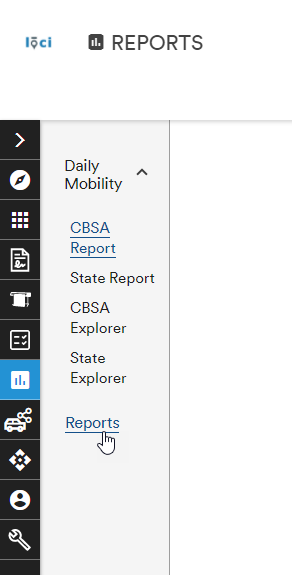
All Reports
The default layout of the Reports module is a list of all reports that have been generated sorted by Created Date
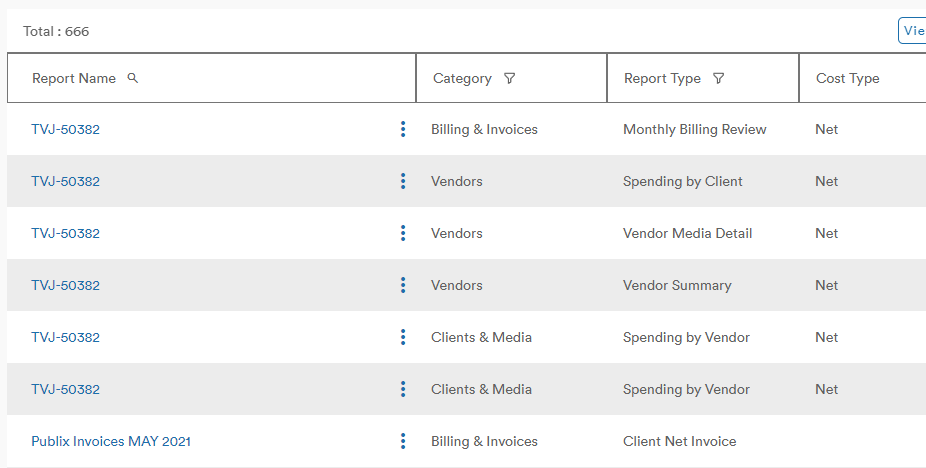
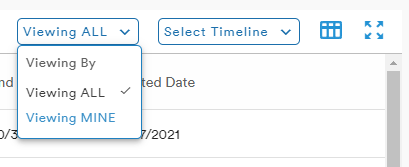
The right-side of list provides two sorting options: Viewing By and Timeline
Viewing ALL: all generated reports are available in the list
Viewing MINE: only reports you have generated are available in the list
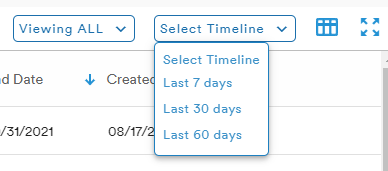
The reports list can also be filtered by those generated in the past 7 days, 30 days, or 60 days
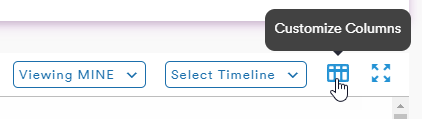
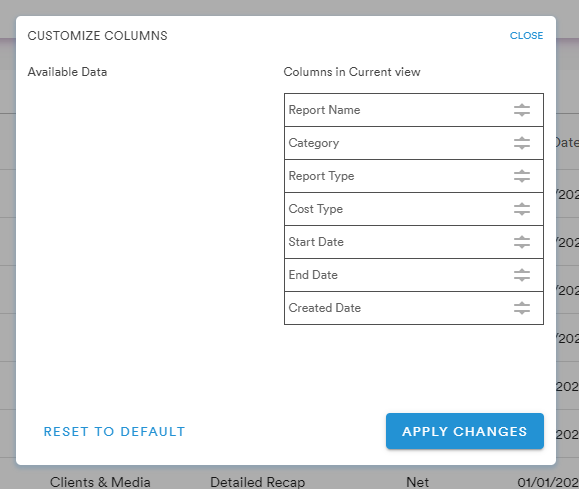
The Customize Columns button allows the user to change which headings are available in their report list by use of a drag-and-drop selection
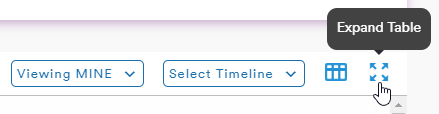
As in all other module tables, the Expand Table button presents the table in a larger format for the user
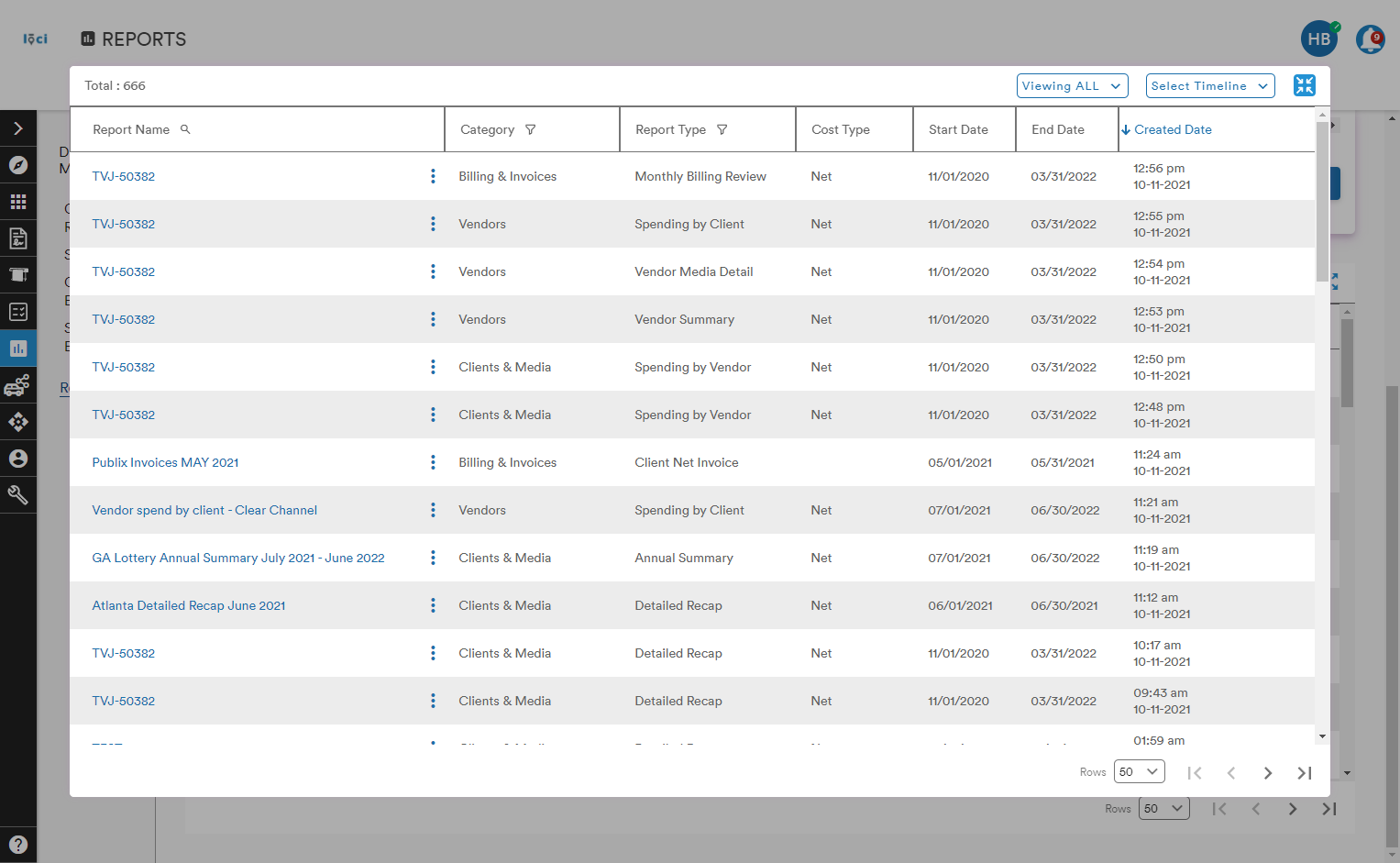
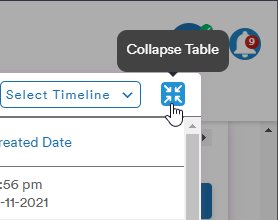
Selecting the Collapse Table button returns the table to its original view in the module
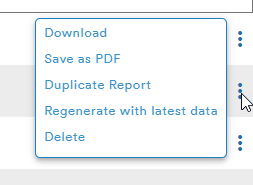
Next to each Report Name is an action button (three stacked dots) that provides the user with five options:
- Download
- Save as PDF
- Duplicate Report
- Regenerate with latest data
- Delete
Report Generation
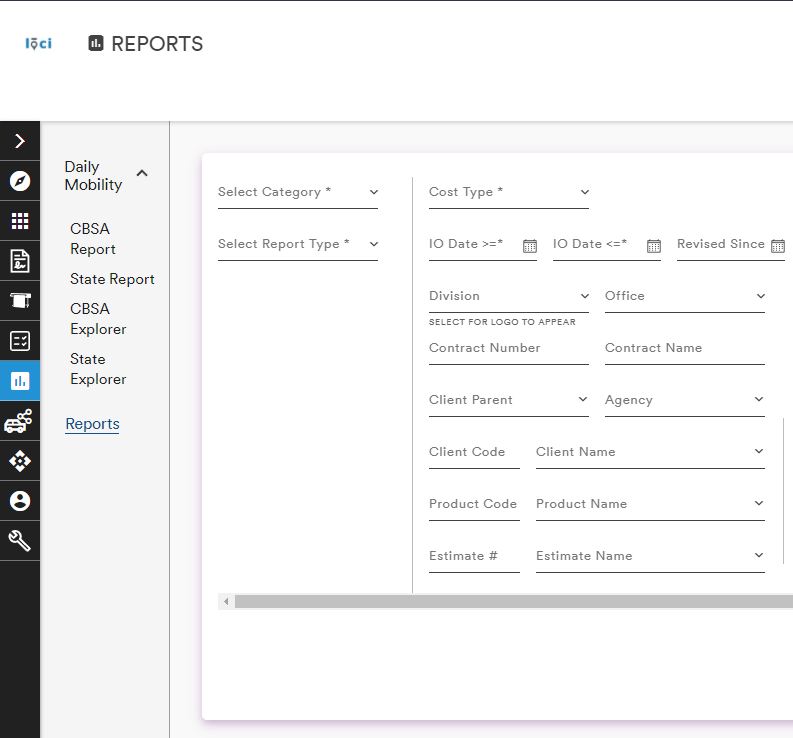
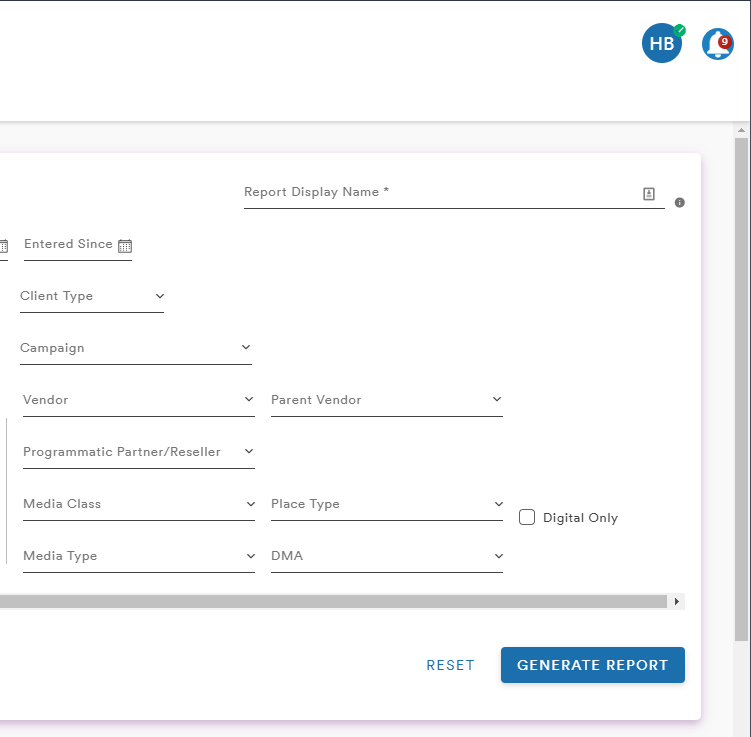
There are six fields that are required to search for reports:
- Category
- Report Type
- Cost type
- Start Date
- End Date
- Report Display Name
Category and Report Type
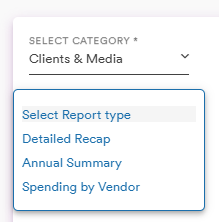
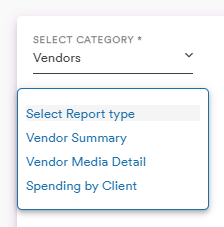
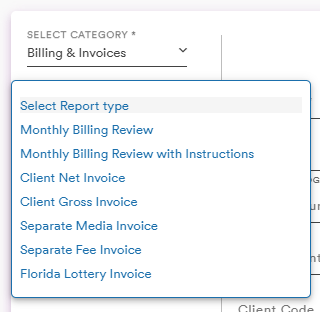
There are two categories in which to search: Clients & Media, Vendors, and Billing & Invoices
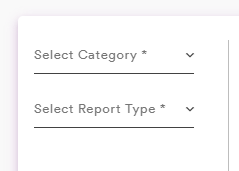
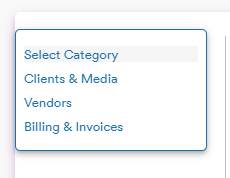
Each category will filter the report types under the report type dropdown
Cost Type
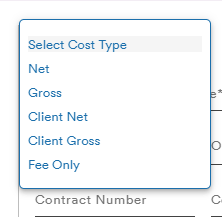
The cost type dropdown includes five options:
Start and End Dates
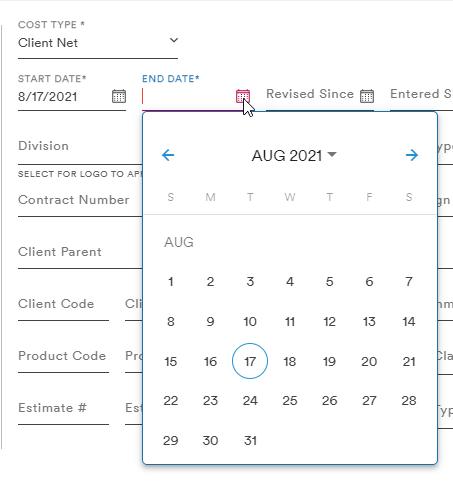
The Start and End Dates are selected by either manual entry or the date picker function
Report Display Name
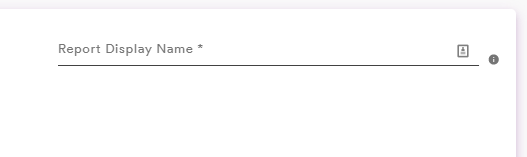
The report display name is a text field that will populate as the title of the report once it is generated
Generating a Report
Once the required fields have been populated, the user can click the Generate Report button at the bottom of the search menu

Clicking Generate Report will bring up the document viewer with the relevant information
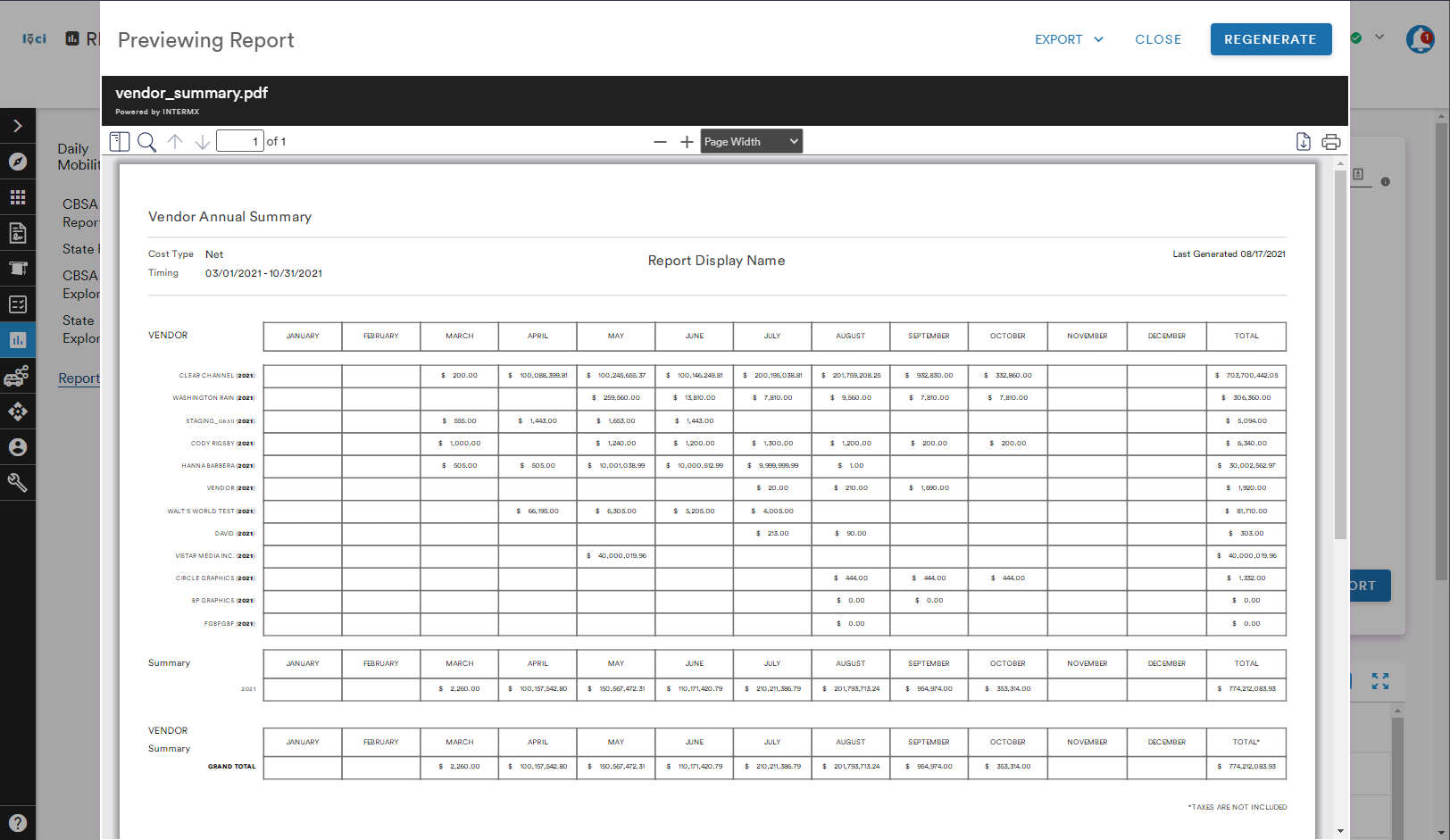
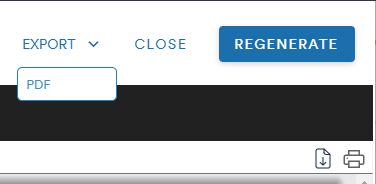
The report can be exported as a PDF using the Export dropdown button
Comments
0 comments
Please sign in to leave a comment.