
The Records Management module of Loci is where users will create and maintain the four core types of records:
- Vendors
- Clients
- Agencies
- Contacts
The Module defaults to opening upon the Vendors screen
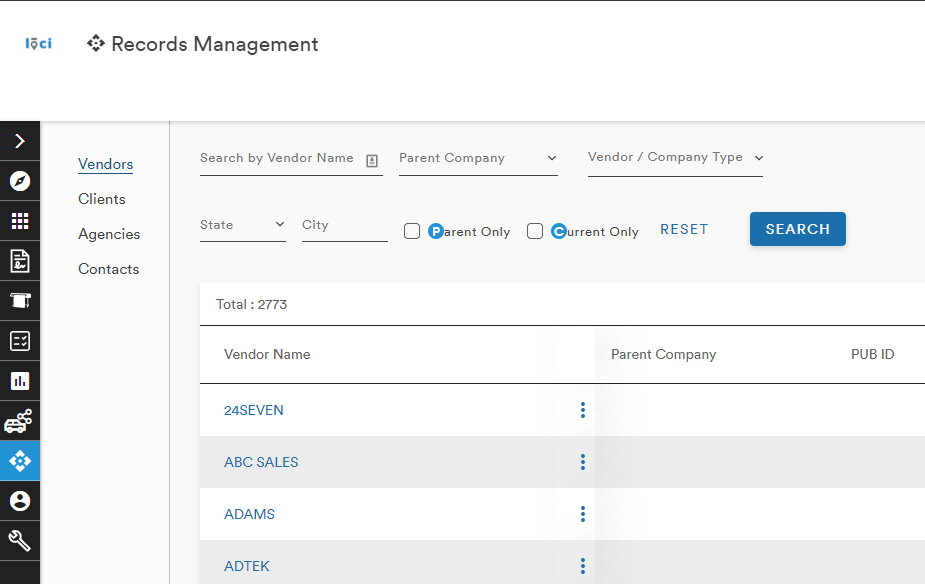
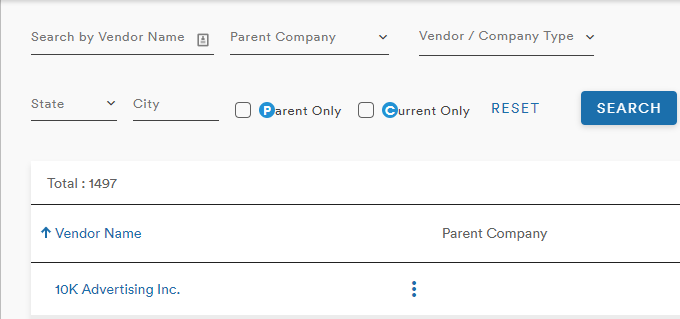
A search menu at the top of the page allows users to search and select which Vendor they are looking for
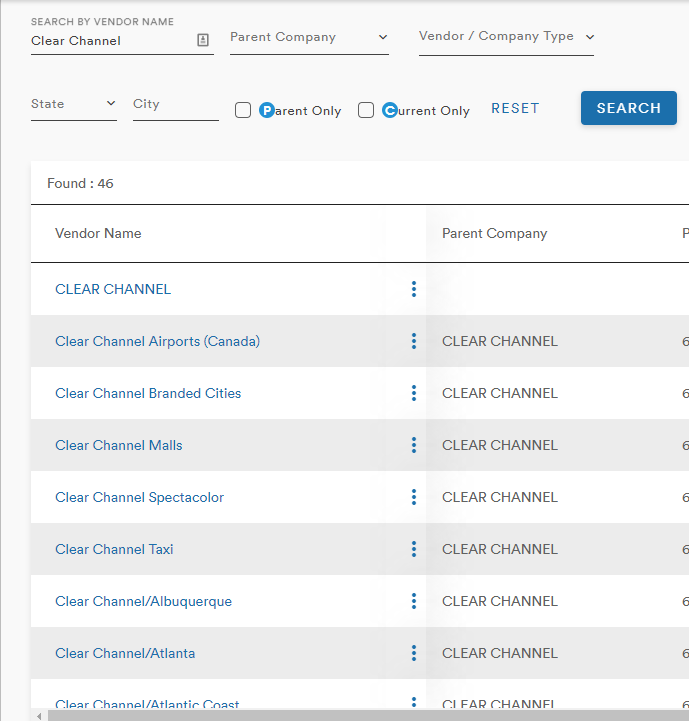
For example, searching for Clear Channel returns all Vendors with the search terms in the Vendor Name columns
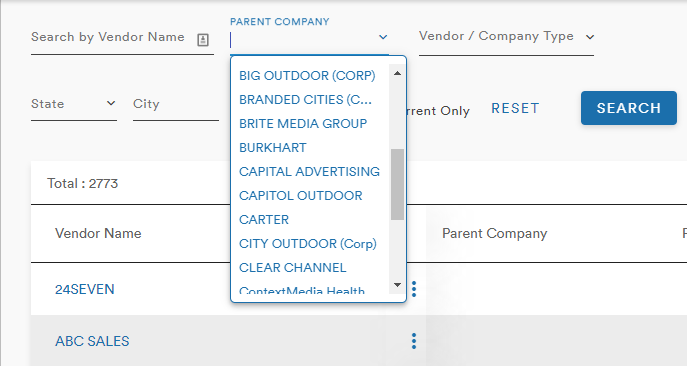
The Parent Company dropdown menu provides a scrollable list of Parent Companies
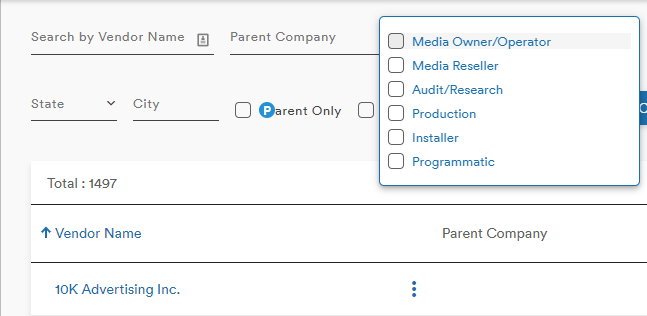
The Vendor/Company Type dropdown menu provides checkboxes to refine the user's search
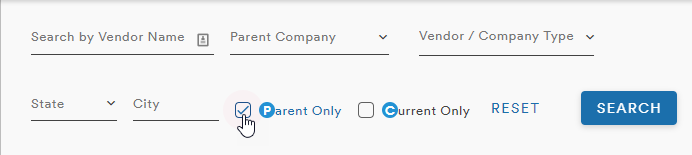
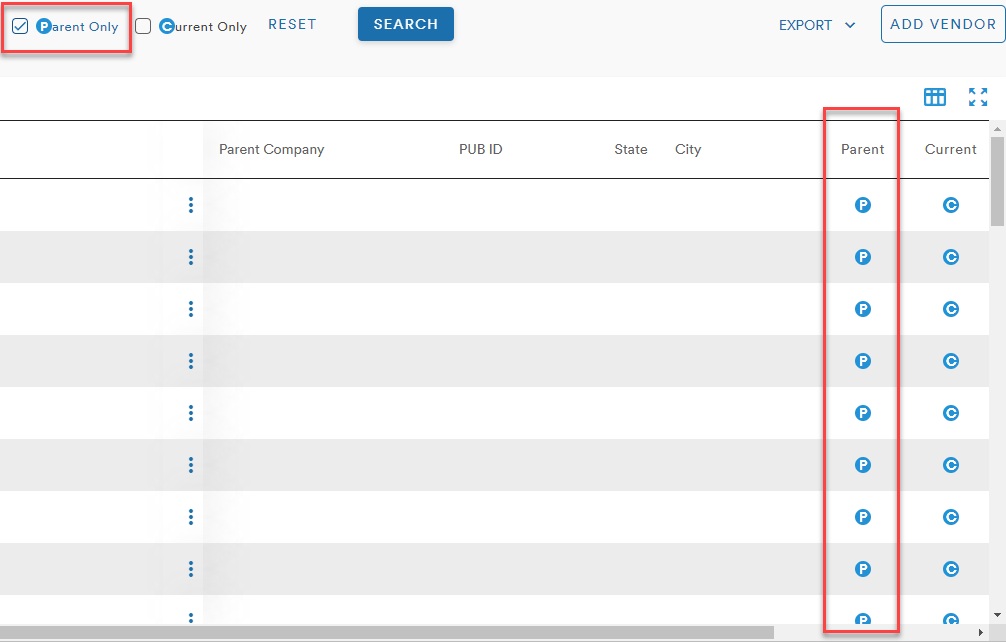
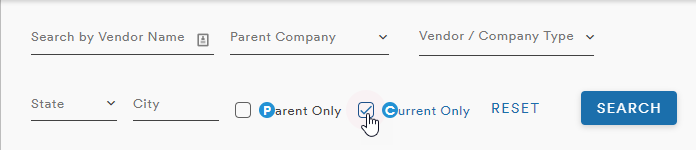
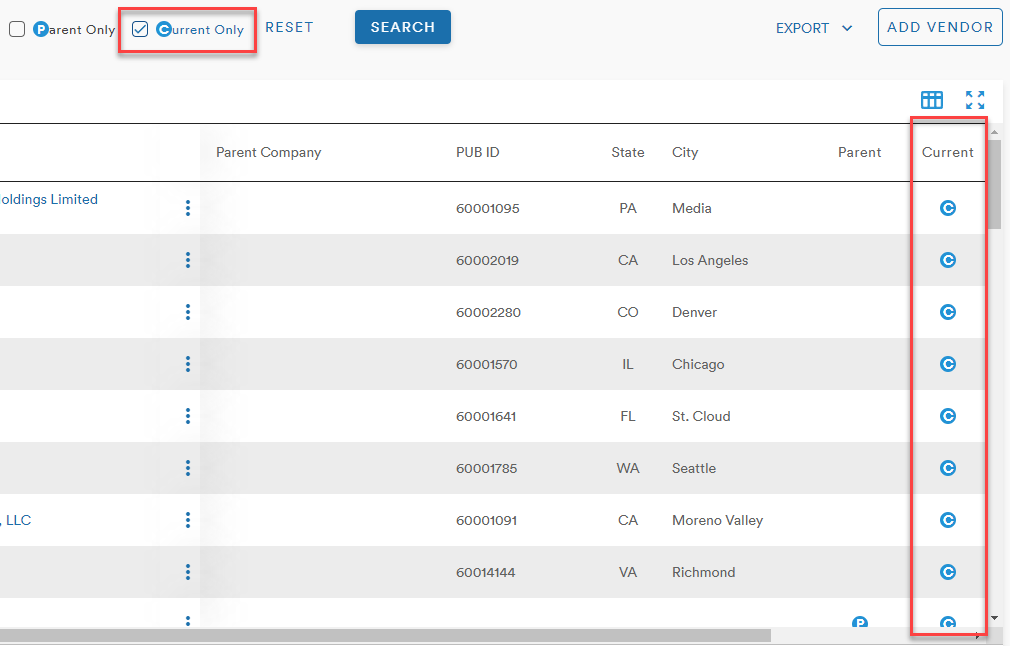
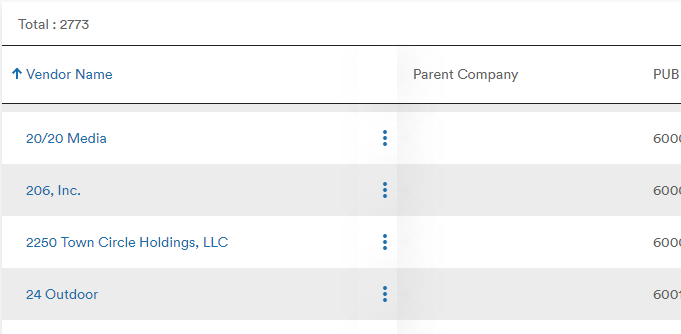
Searching by Parent Only and Current Only will display the stylized "P" and "C" in the table
Next to each Vendor Name is an action button (three stacked dots) that gives the users options to Duplicate or Delete the Vendor record
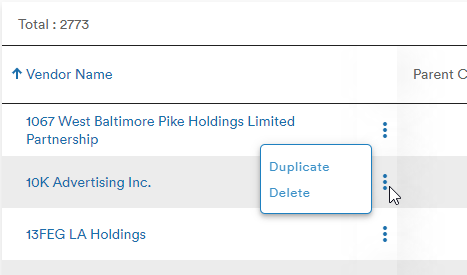
It is important to note that Records cannot be deleted if they have contracts attached to them
Export
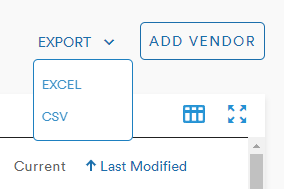
On the right side of the menu, users can export their filtered list of Vendors as an Excel or CSV
Customize Columns
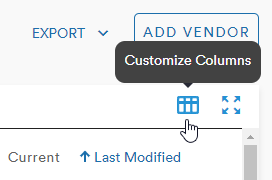
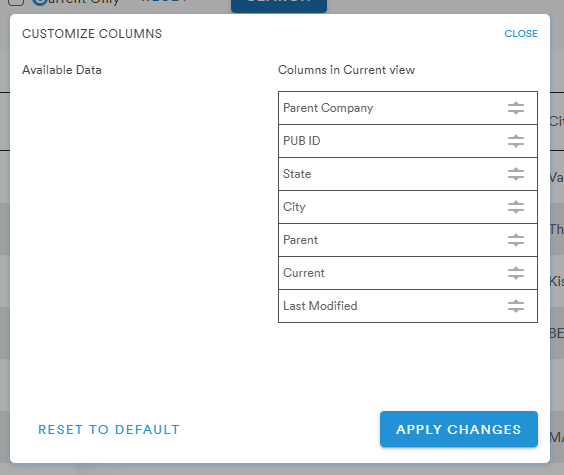
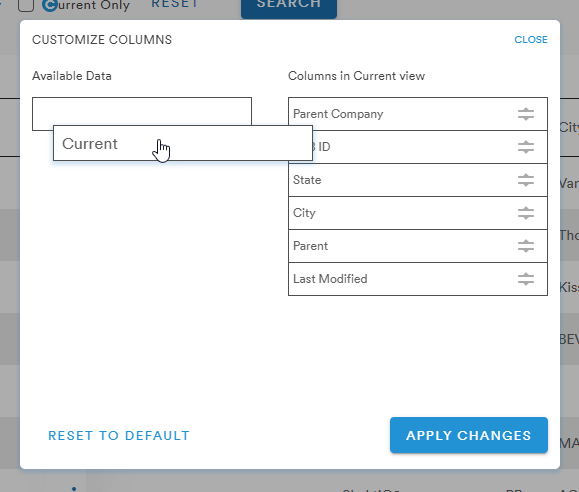
The Customize Columns menu allows users to rearrange the table columns using a drag-and-drop selection for the data types
Expand Table
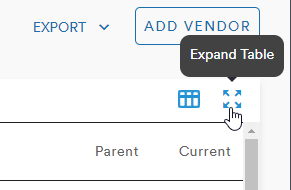
The Expand Table button opens an inset window with a larger layout of the table
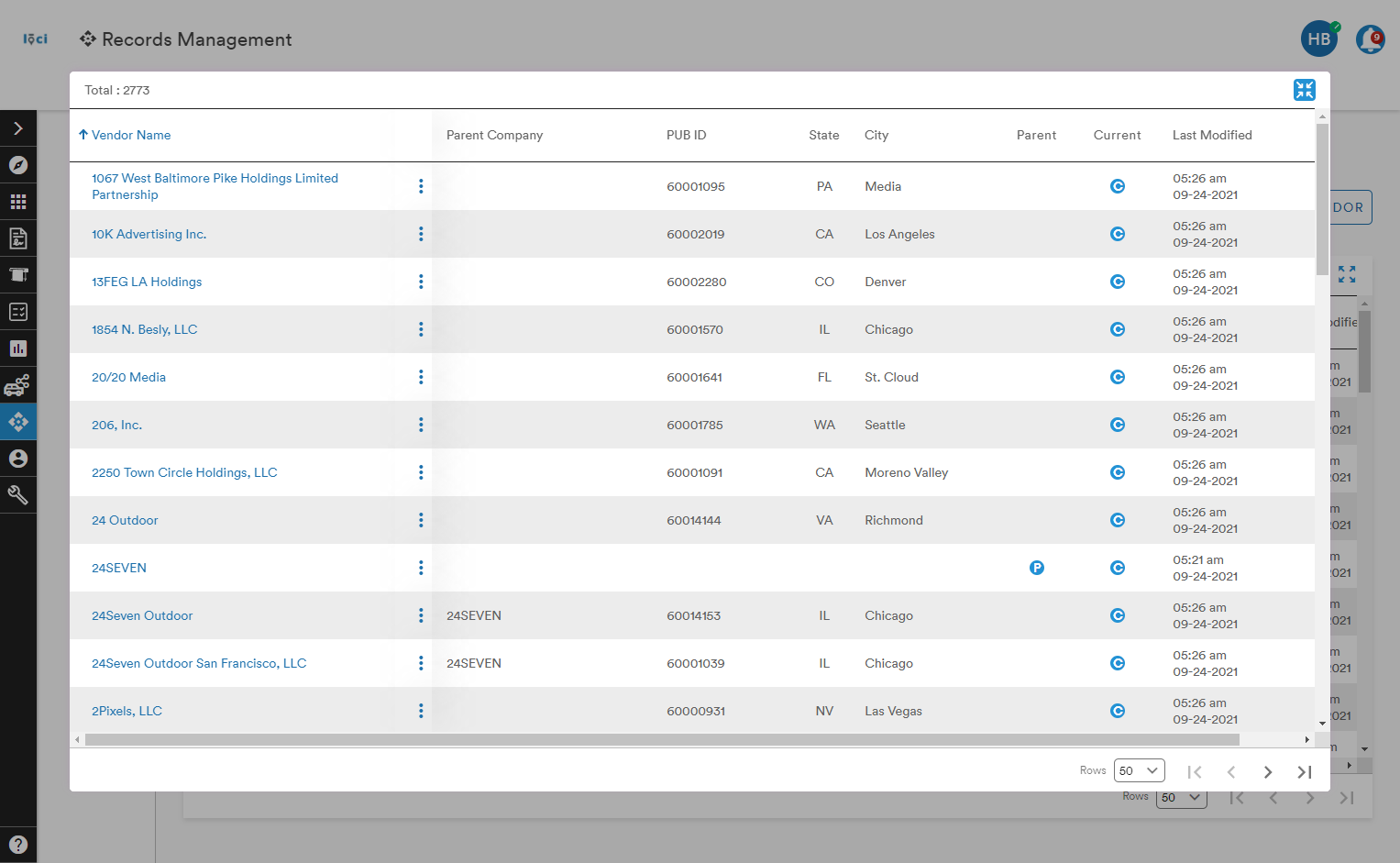
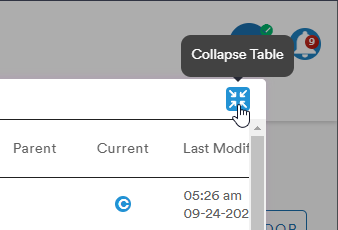
Clicking the Collapse Table button will return the table to the previous view
Add Vendor
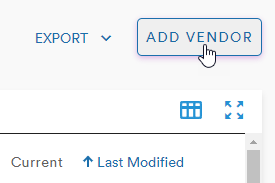
Users can also choose to create a new vendor record by clicking the Add Vendor button
This opens the Add Vendor menu into which the user can input all the required information to create a new Vendor in the system
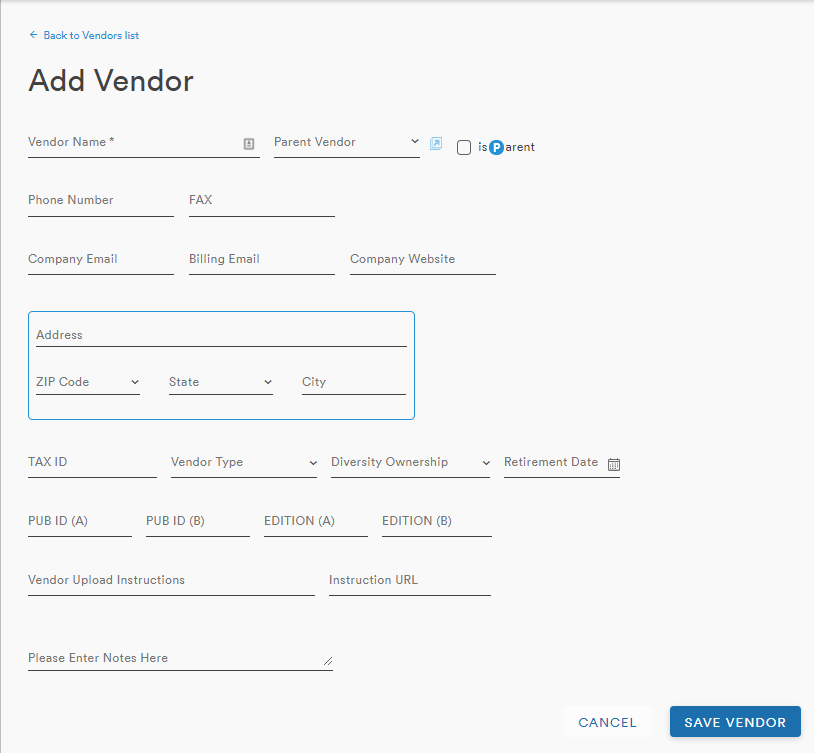
Once the required fields have been populated (signified by an *), the user can click Save Vendor and the Vendor record will be created
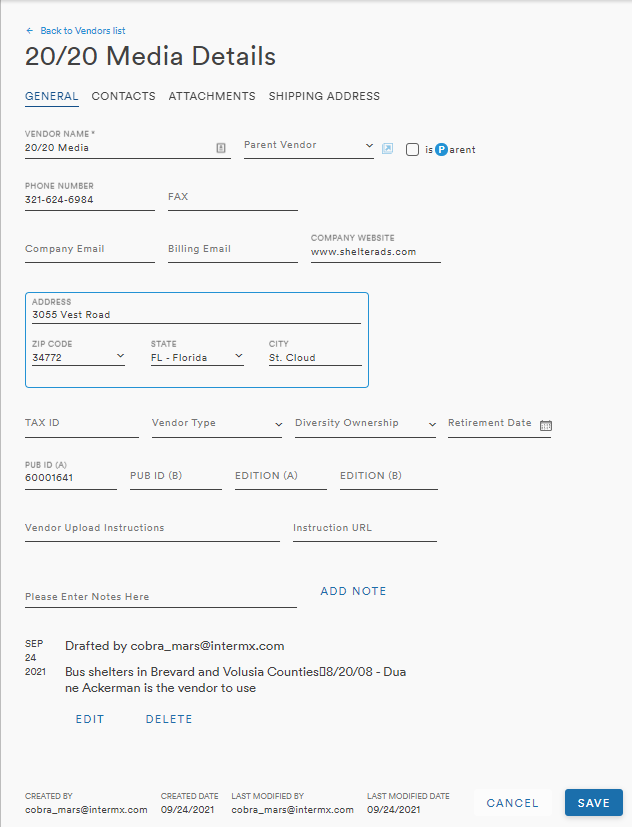
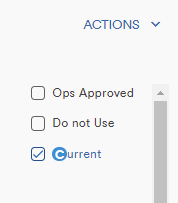
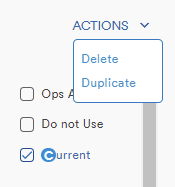
To the right of this screen are an Action menu and three checkboxes:
- Ops Approved
- Do not Use
- Current (default as checked on all new Vendor records)
The Action menu on this screen provides the same two functions as the main screen Action menu: Delete and Duplicate
The record will also appear in the table on the Vendors main page
Comments
0 comments
Please sign in to leave a comment.