
Throughout Loci, users can add their own files and documents to records. The attachments tab is found in some modules of Loci:
Contracts
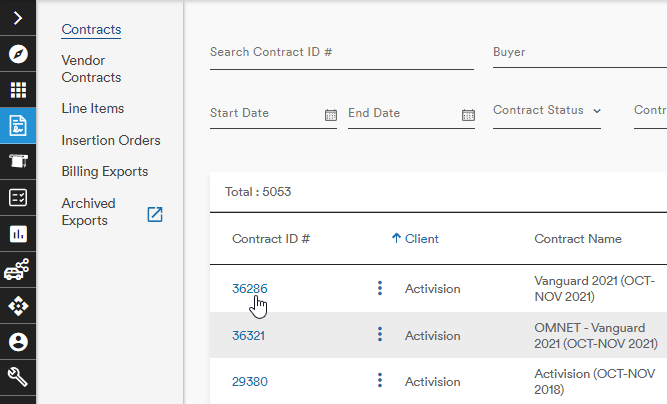
From the main Contracts page, selecting a Contract ID brings up the Contract record
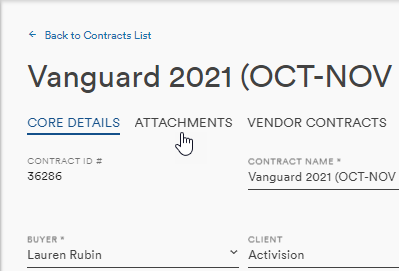
From the Contract record page, the Attachments tab can be selected
Attachments are not available within the other Contracts pages
Jobs
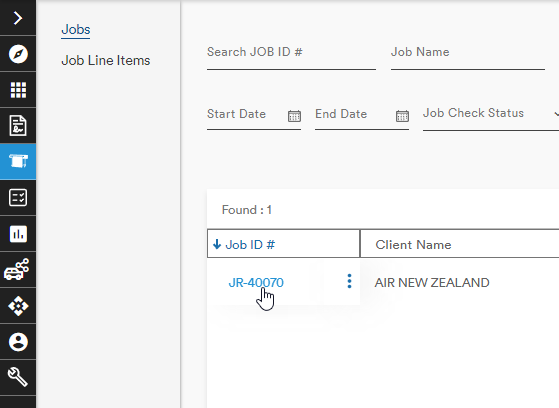
From the main Jobs page, selecting a Job ID brings up the Job record
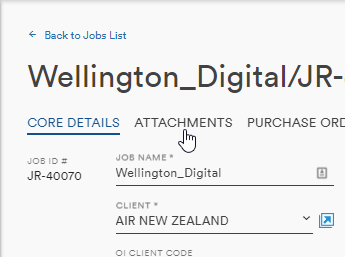
From the Job record page, the Attachments tab can be selected
Records Management
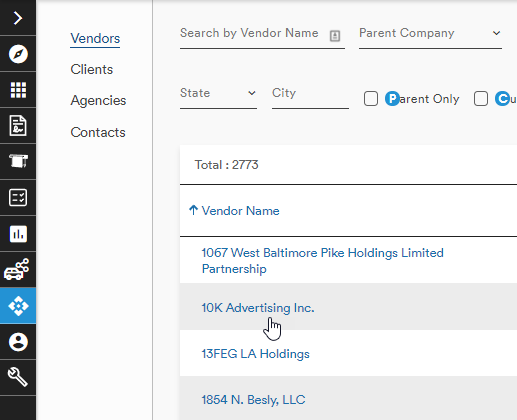
The Records Management module defaults to Vendors when first opened
From the Vendors menu, selecting a Vendor Name brings up the Vendor record
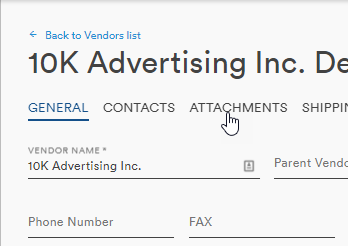
From the Vendor record page, the Attachments tab can be selected
Attachments are not available within the other Records Management pages
Using Attachments
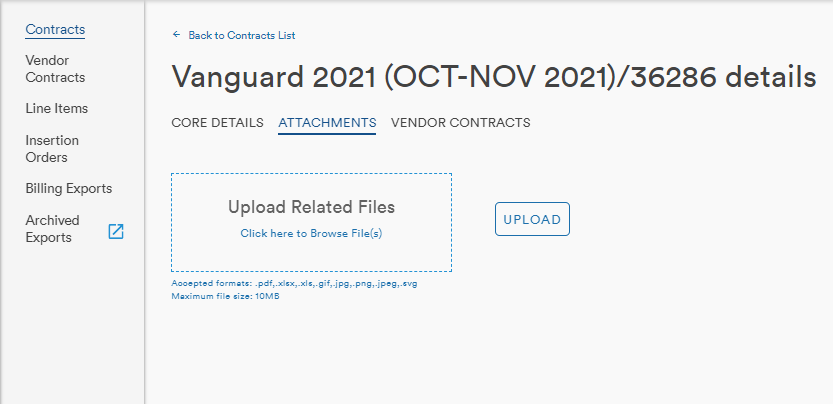
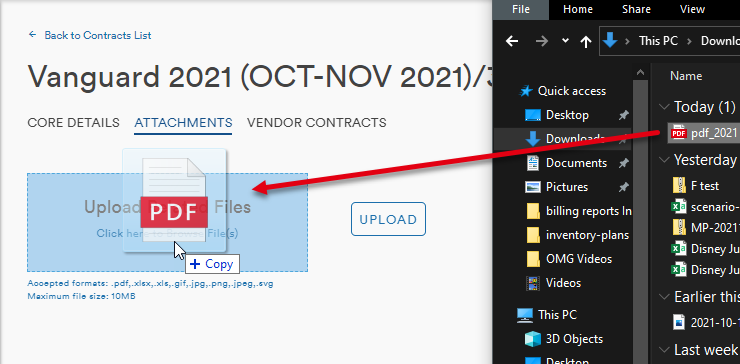
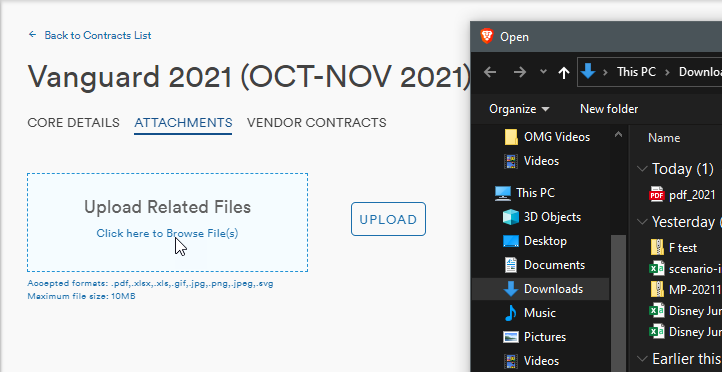
From the Attachment tabs of any Module, a user can either drag and drop the necessary file into the Upload Related Files box or selecting the text "Click here to Browse File(s)" and the file explorer will open
Drag and Drop
Click Here to Browse File(s)
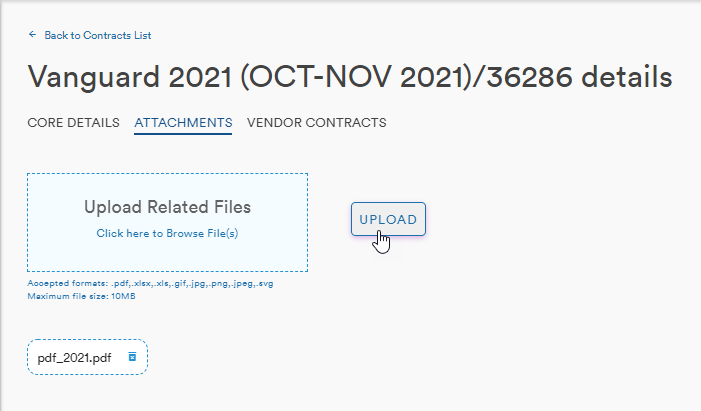
Once the file is selected, the user can either remove it with the trash can icon or select to upload the file
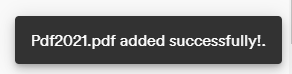
A confirmation message will appear at the bottom of the screen
The file will be numbered and icons to download or remove the file will also be present
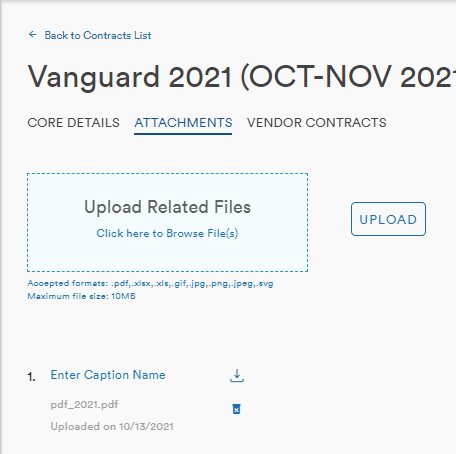
The attachment can be given a name by clicking the Enter Caption Name text
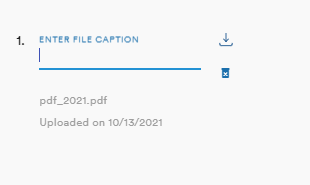
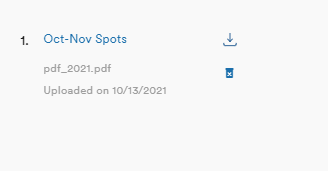
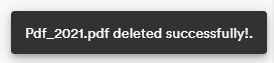
The attachment can be removed by clicking the trash can and confirming the selection
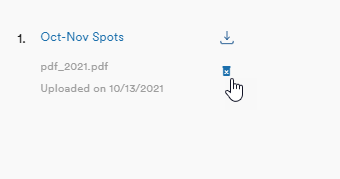
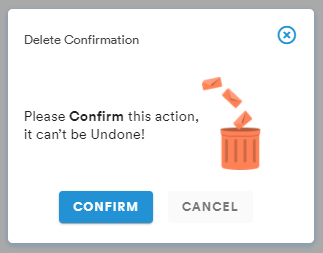
A confirmation message will appear at the bottom of the screen
Comments
0 comments
Please sign in to leave a comment.