
Once an Inventory Plan has been created, there are several options available to the user to change the details of the Plan
A user can open the Package to view the details by selecting the Package number and arrow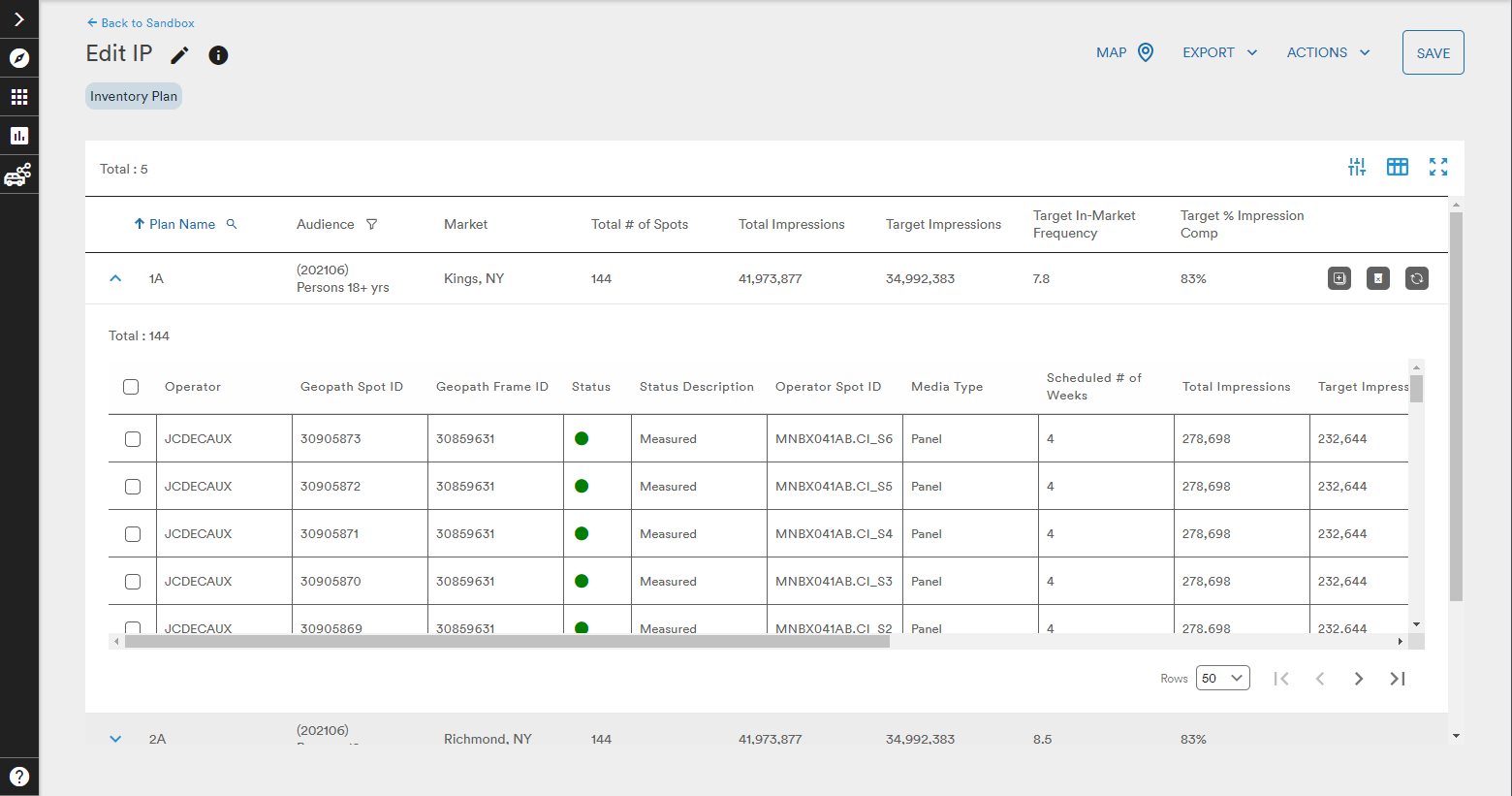
Parameters, Customize Columns, and Expand Table
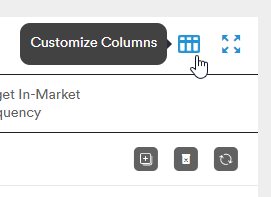
At the top-right of the Plan are the Parameters and Customize Columns buttons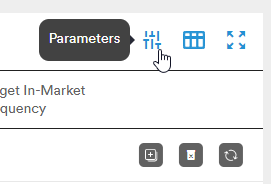
The Parameters button will bring up the Define Target and Filter Inventory menus as well as the Plan Summary side menu
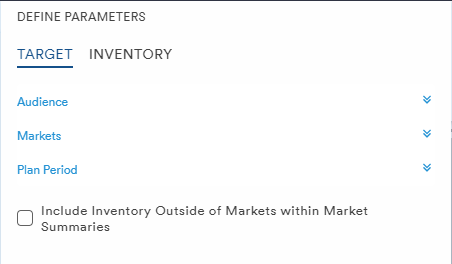
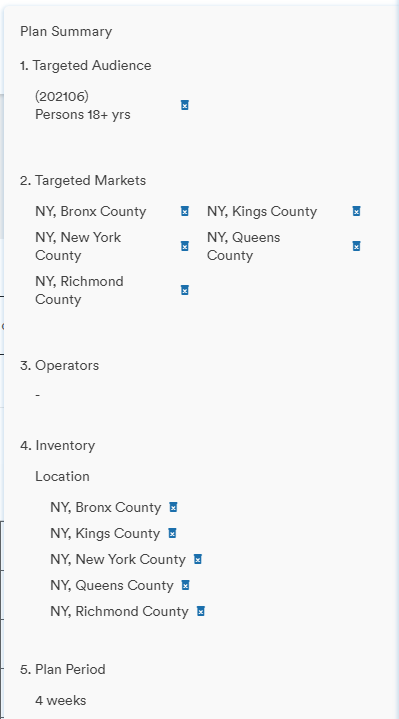
Filtering by inventory in Parameters provides more options to the user than in Market Plan
The user can choose to edit their inventory in four ways:
- Adding inventory via specific Spot IDs
- Uploading a CSV
- Selecting a previously saved inventory set
- Filtering inventory as seen on the plan generation page
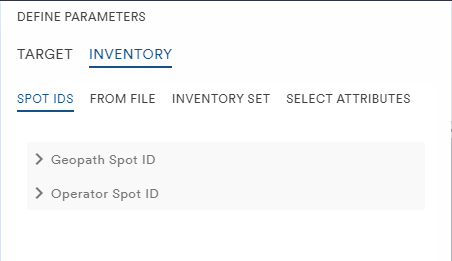
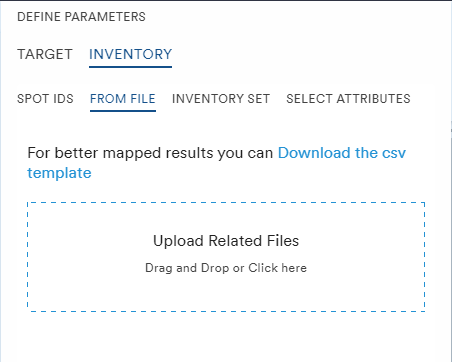
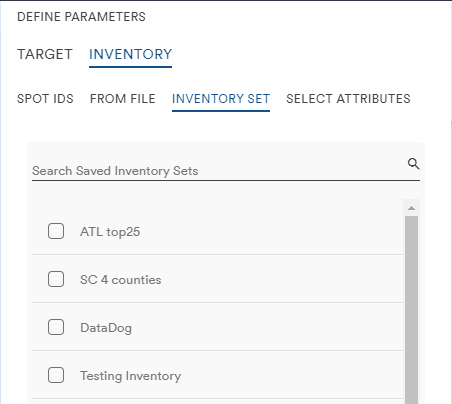
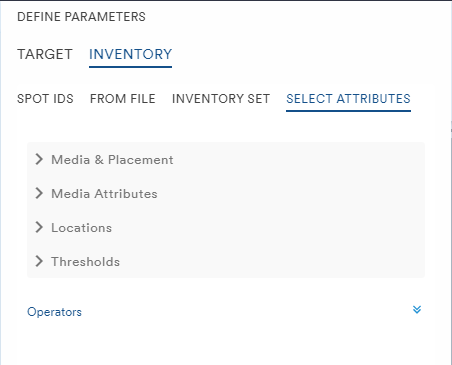
Once the details of the plan have been adjusted, the user can apply the changes by selecting the Re-Generate button at the bottom of the Parameters menu
The Customize Columns menu allows the user to select which pieces of data they want to view in their plan
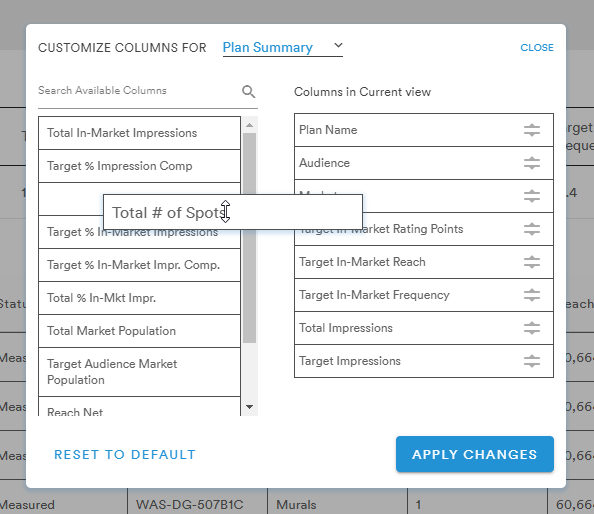
Data columns can be added or removed by dragging and dropping the tiles from one side of the menu to the other
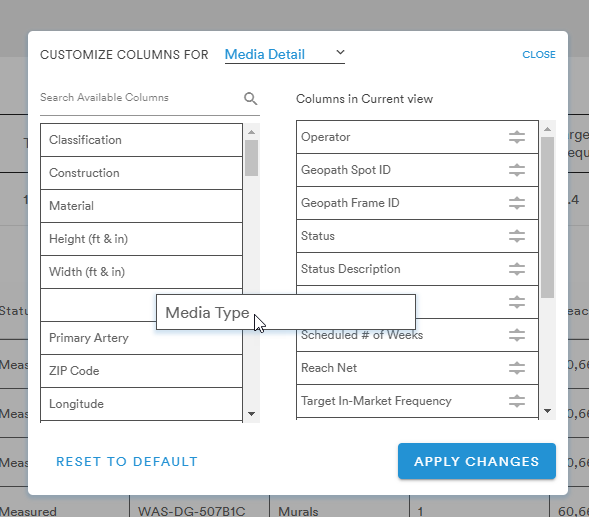
(a more detailed look at Customized Columns can be found here)
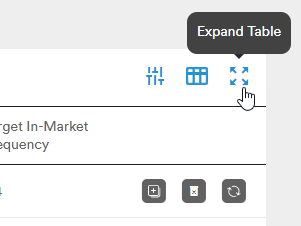
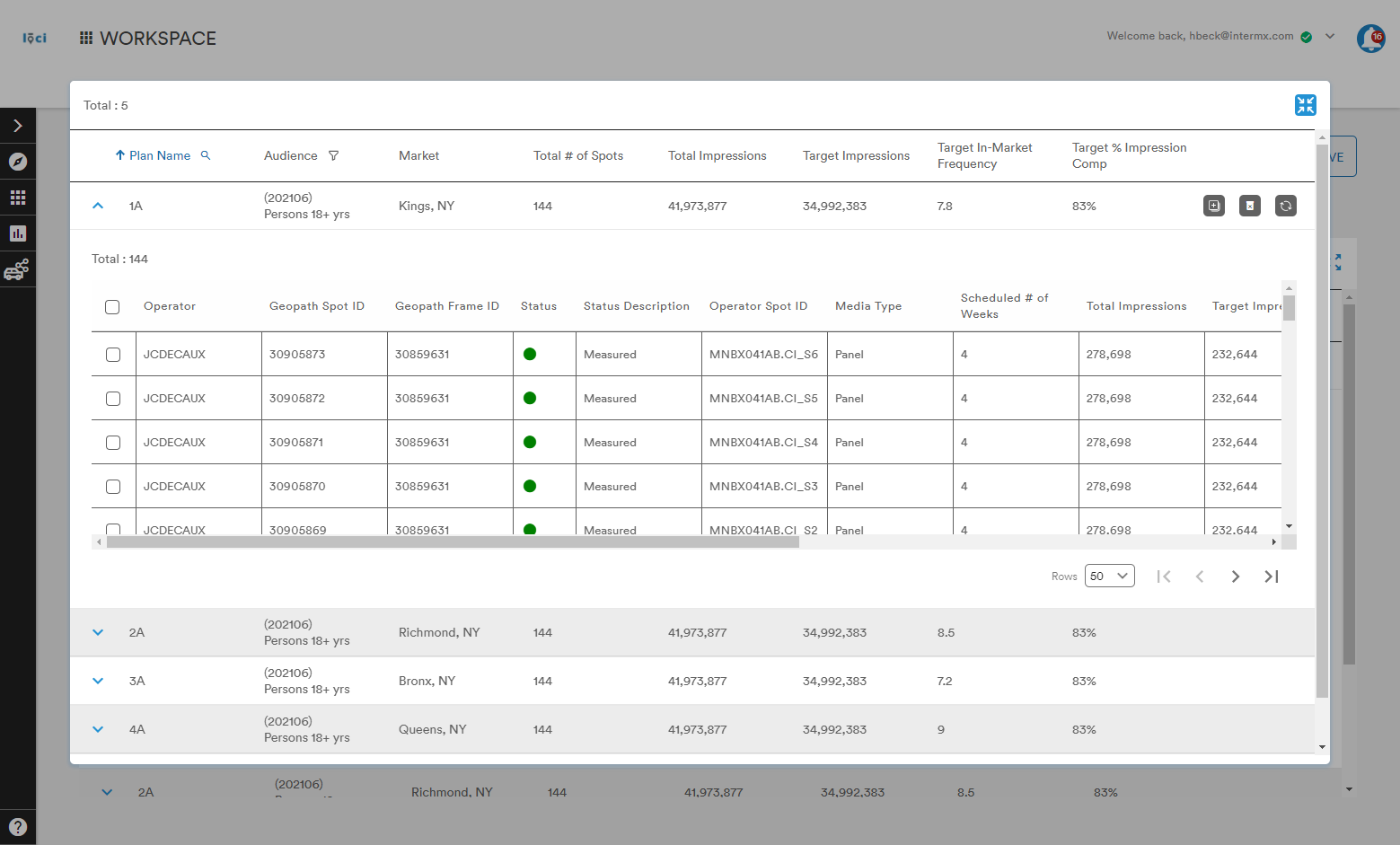
The Expand Table button will open the plan table in its own internal window on top of the scenario page:
Map, Export, and Actions
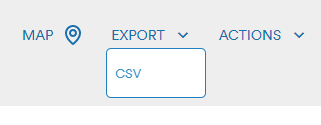
At the top right of the Plan are the Map, Export, and Actions buttons
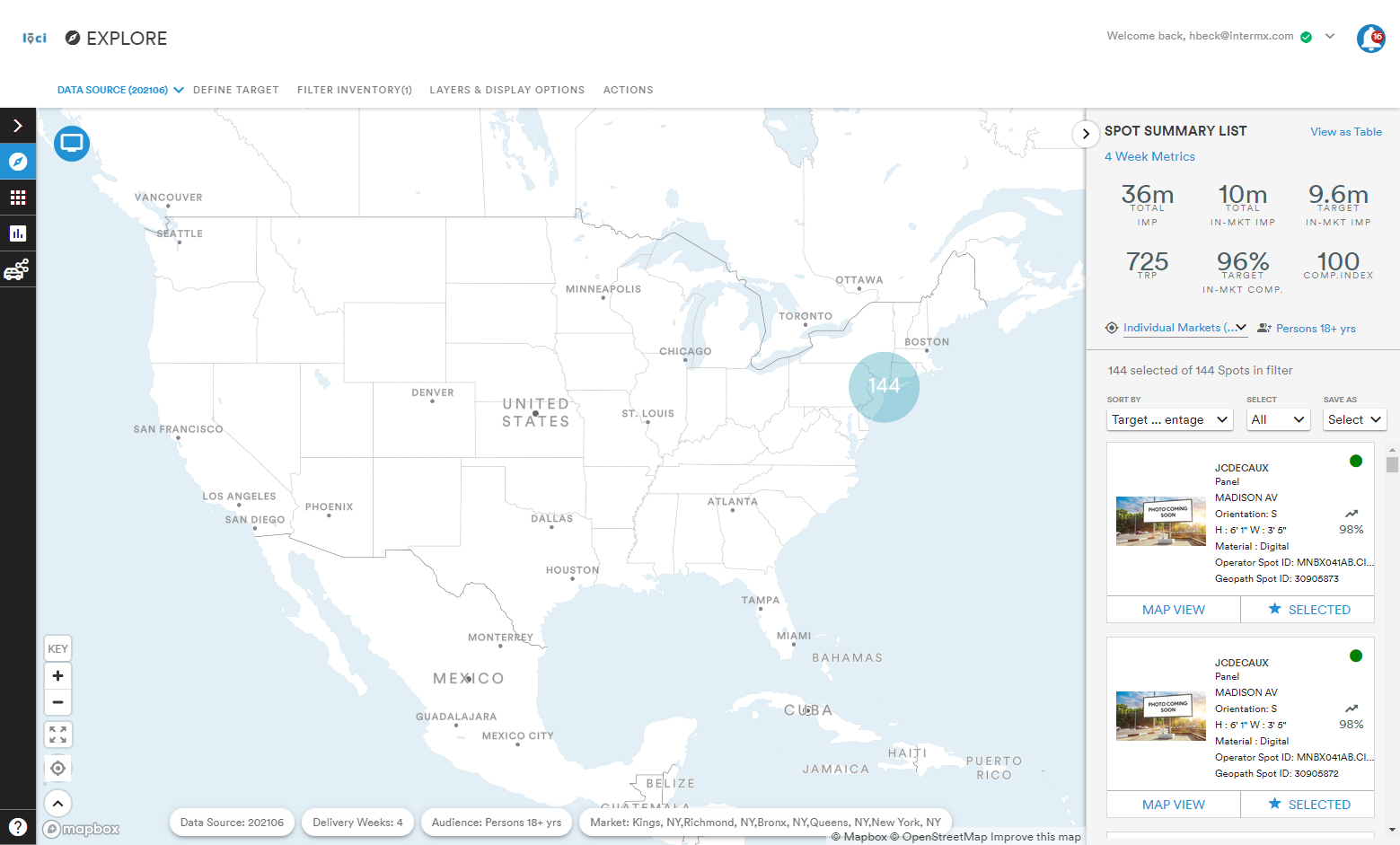
Selecting the Map button will open a new browser tab and take the user to the Explore module where the details of their Inventory Plan will be plotted on the map
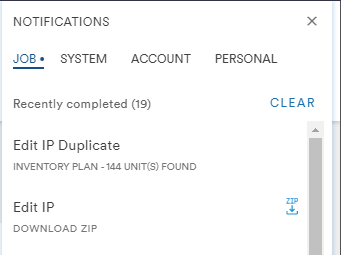
The Export button will generate a CSV for the user based on their plan data. Scenarios with multiple Plans will export as a .zip file in the notification pane
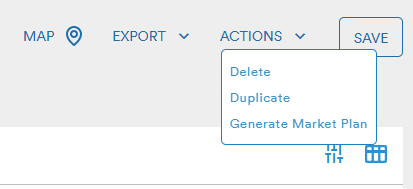
The Actions button allows the user to Delete or Duplicate the Plan or Generate a Market Plan based on the plan parameters
Selecting Delete will bring up the Delete Confirmation window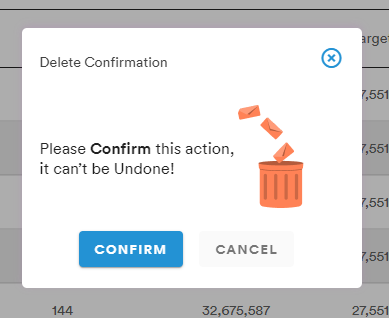
Selecting the Duplicate button will prompt the user to create a name for their duplicated plan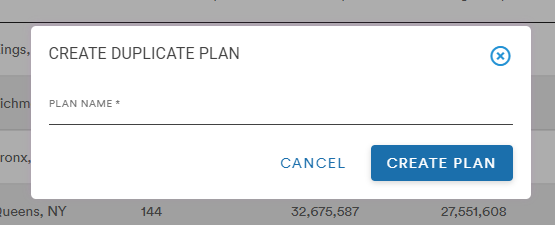
Selecting the Create Plan button will take the user to the newly duplicated plan page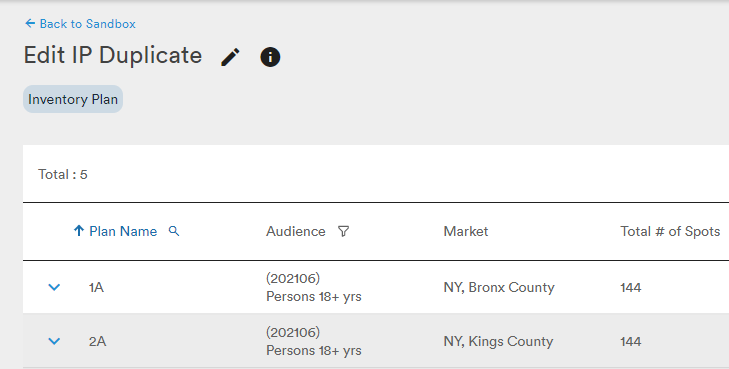
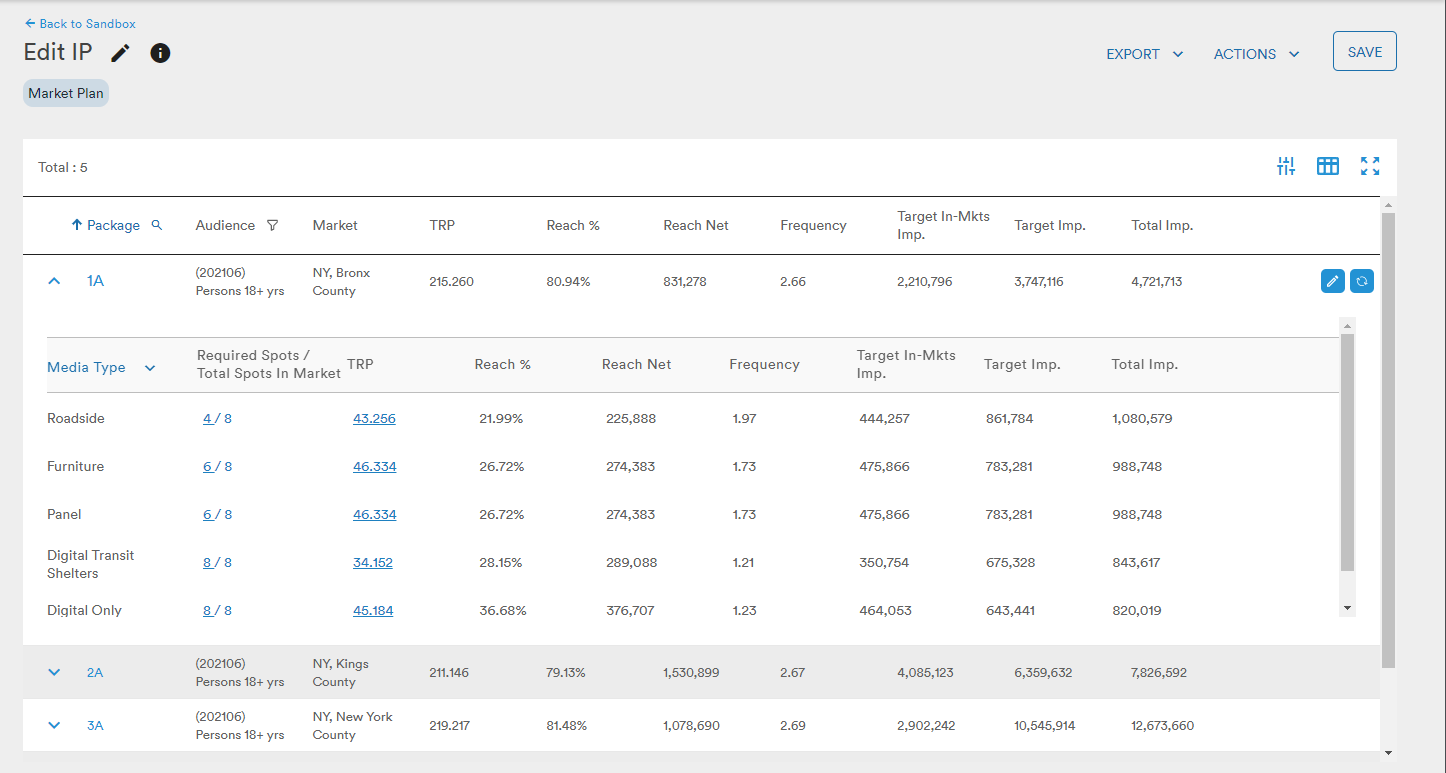
Selecting Generate Market Plan allows the user to utilize the parameters of their Inventory Plan to generate a Market Plan
Comments
0 comments
Please sign in to leave a comment.