
The Jobs module features an updated document viewer which has several features
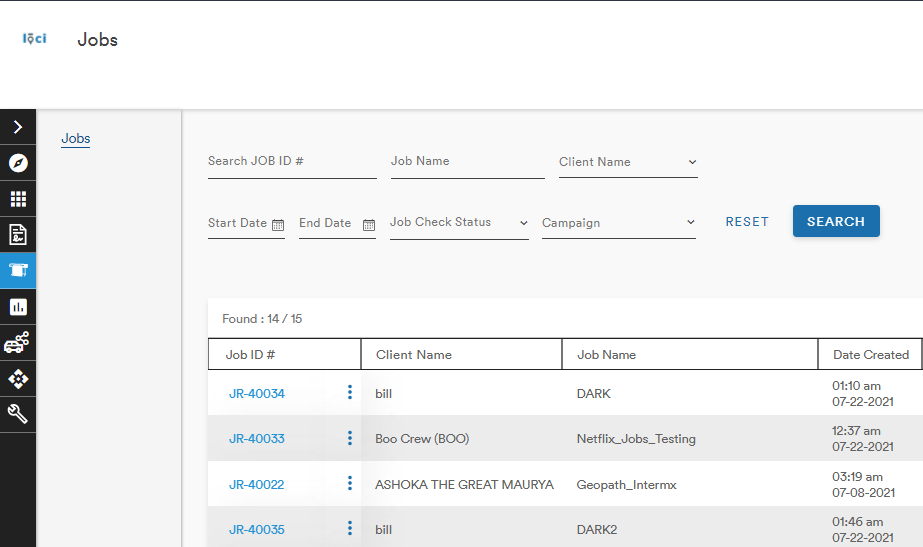
From the action button (three stacked dots) on the Jobs main page, users can choose to view the Production Authorization and Client Invoice documents
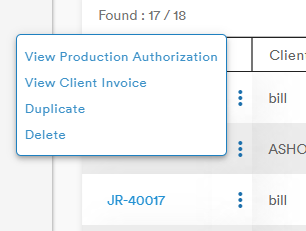
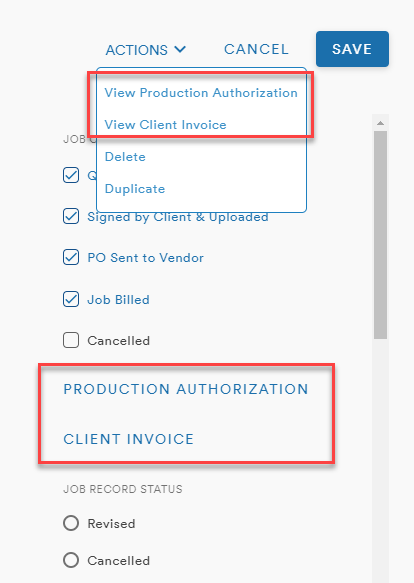
These links are also available within the Job record in the Actions menu and as links below the Job Checkpoints
Features of the Document Viewer
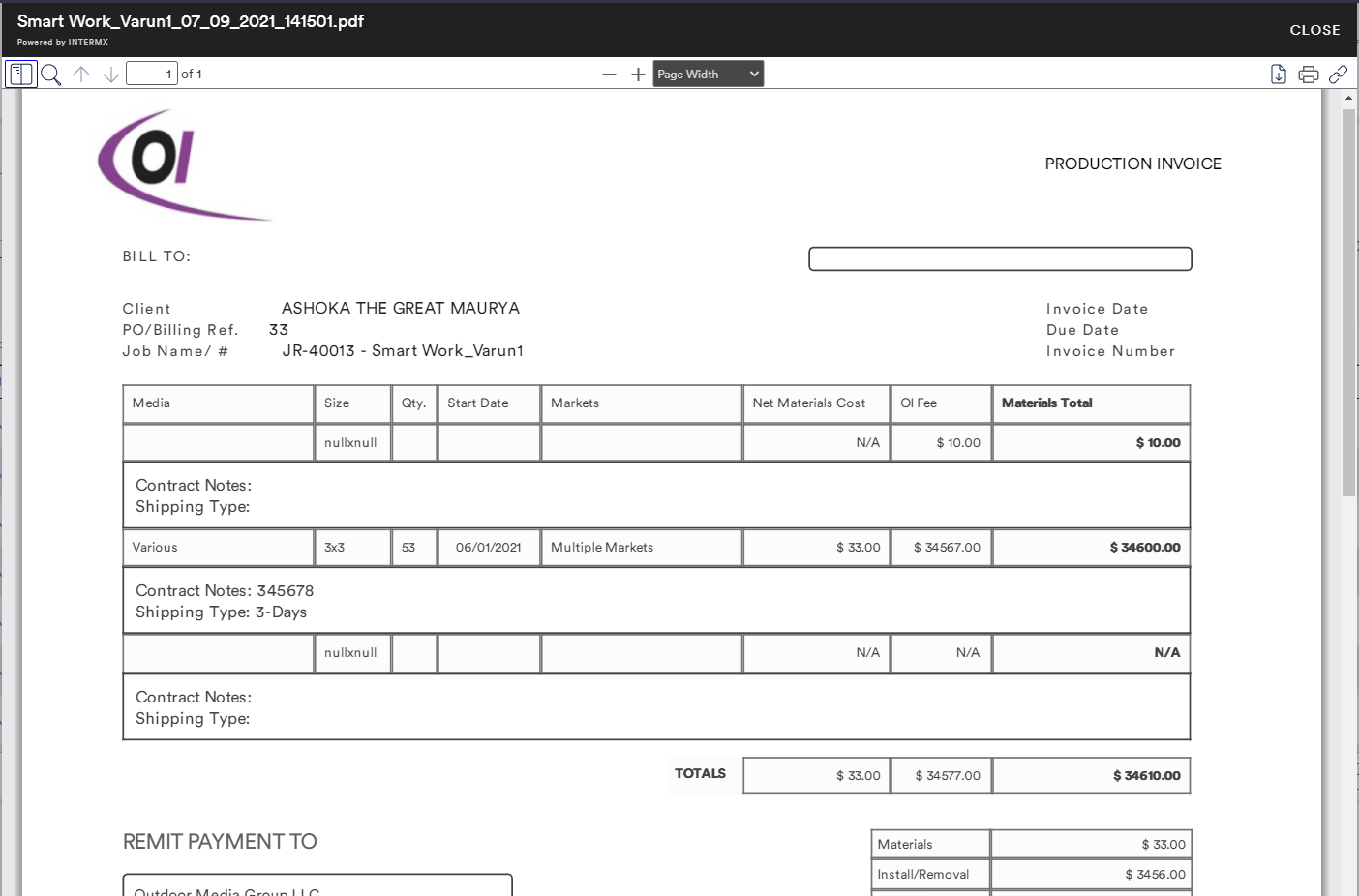
There are several new buttons at the top of the viewer
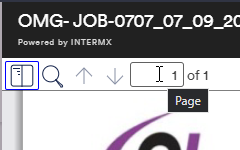
In the left corner you'll find the Toggle Sidebar, Find in Document, Previous/Next Page, and Exact Page buttons
Zoom Controls are in the center
In the right corner, you'll find the Download, Print, and Link buttons
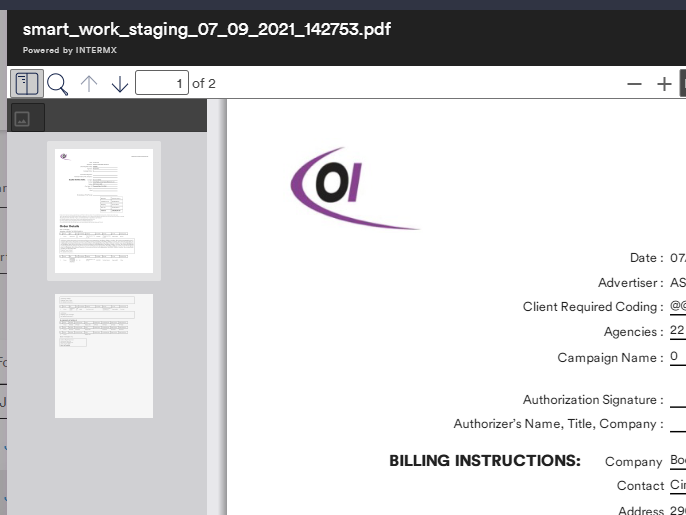
Toggle Sidebar
The Toggle Sidebar button opens a lefthand sidebar to allow an easier view of multiple pages
Find in Document
The Find in Document operates much like other search functions. The search bar allows the user to find a character or word within the document with a variety of filtering options and a part/whole tally 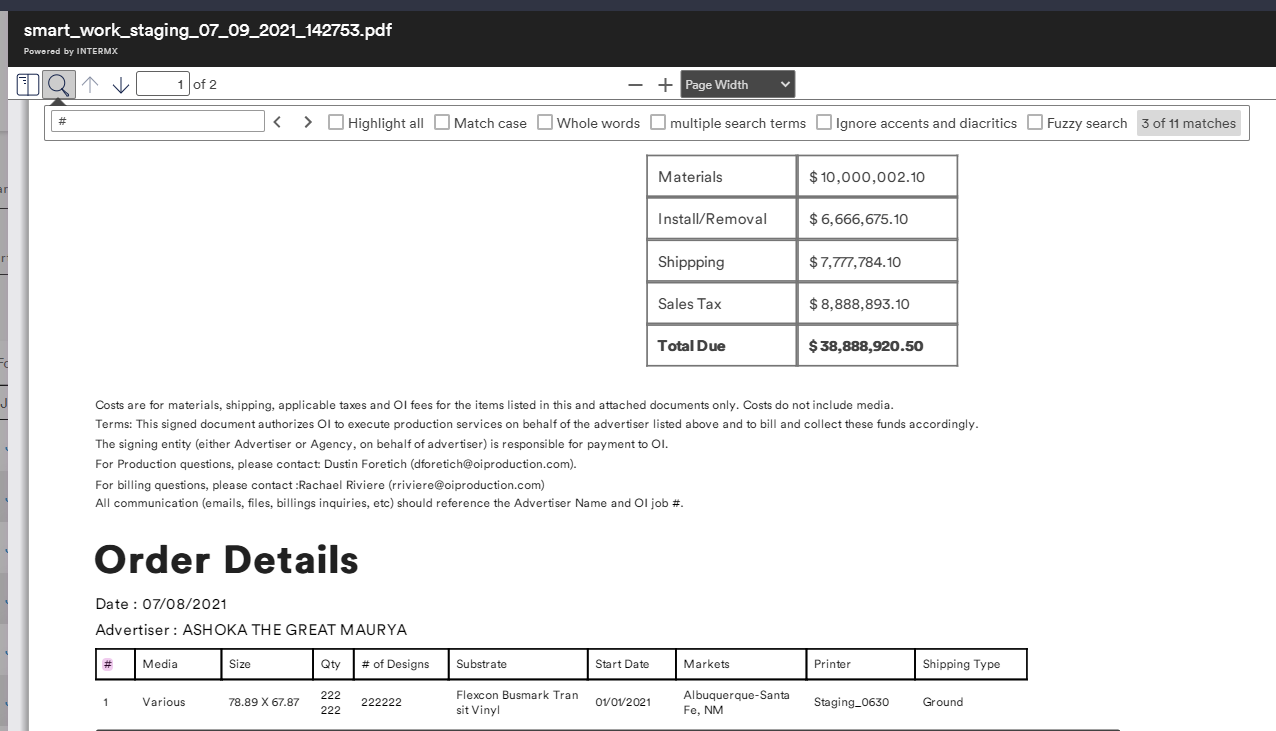
There are also several options to refine your search:
- Highlight All: all found words/characters will be highlighted
- Match Case: the use of capitalization will filter out results
- Whole Words: incomplete words or letter combinations will not be recognized
- Multiple Search Terms: a list of terms can be used as search criteria
- Ignore Accents and Diacritics: the signs above or below letters (e.g. ñ, ç, é, ö, etc.) will be ignored in the search
- Fuzzy Search: similarly spelled words will be highlighted
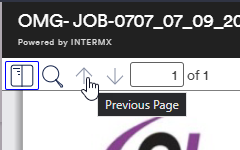
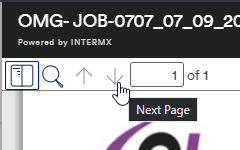
Previous/Next Page
Exact Page
Jump to a specific page in the document
Download
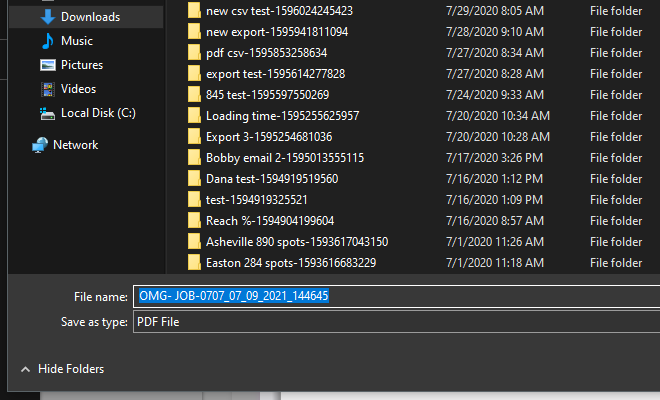
Selecting the Download button will open your device's Save As window and gives you the option to name your file
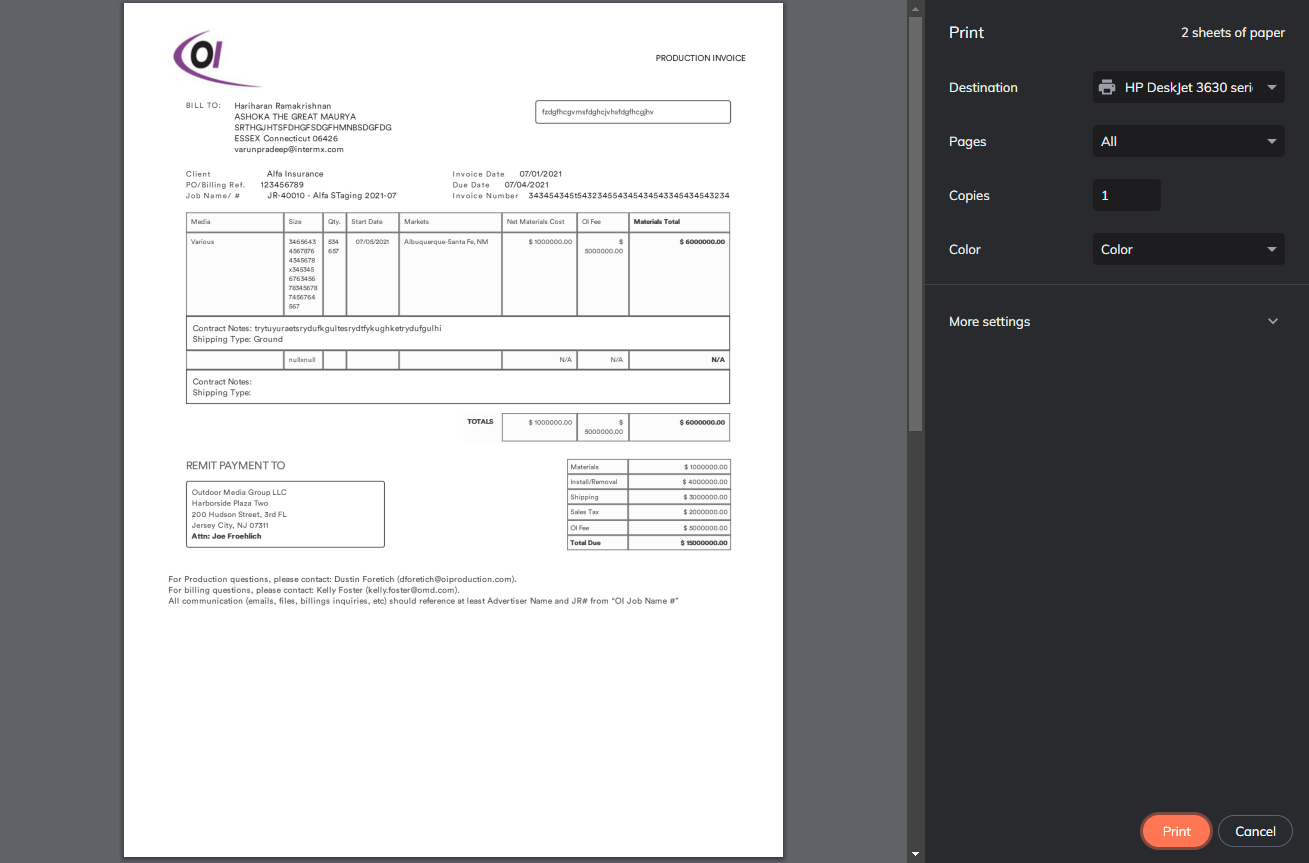
Clicking the printer icon brings up your browser's print menu
Link
Selecting the Link icon will copy the document's URL to your clipboard so it can be shared or pasted into another window
Comments
0 comments
Please sign in to leave a comment.