
Within a Job record, Purchase Orders can be found in the Purchase Order tab
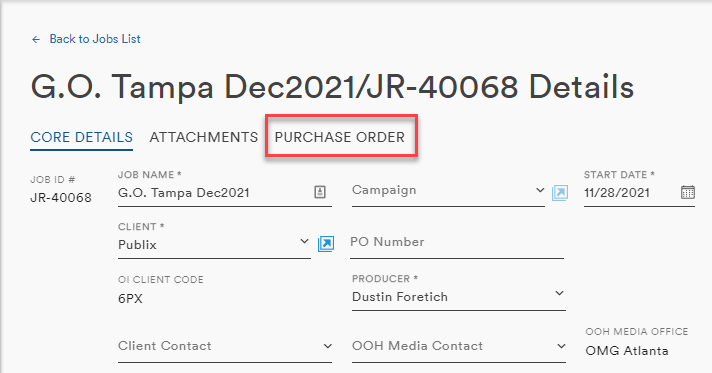
Clicking the tab presents all associated Purchase Order in a table
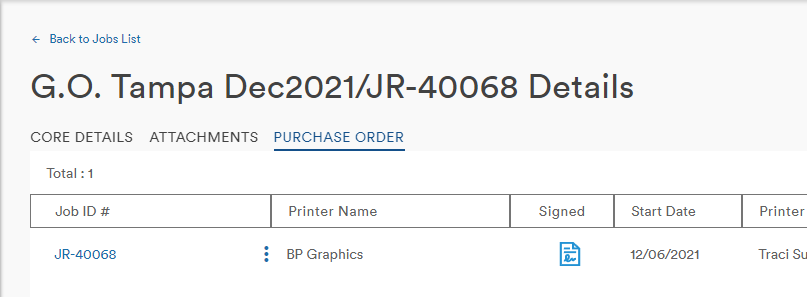
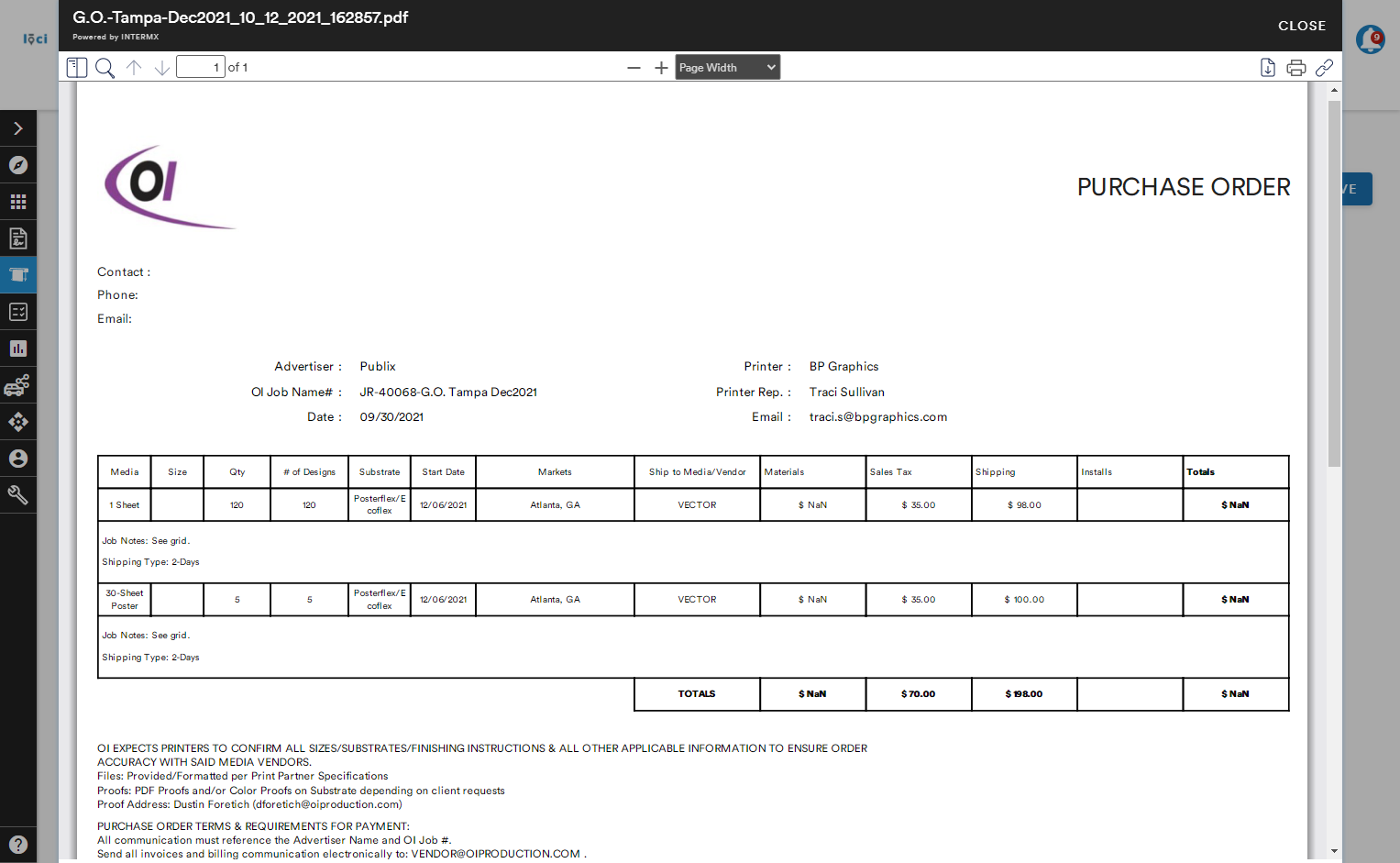
Selecting the Job ID will open the PO in the Document Viewer
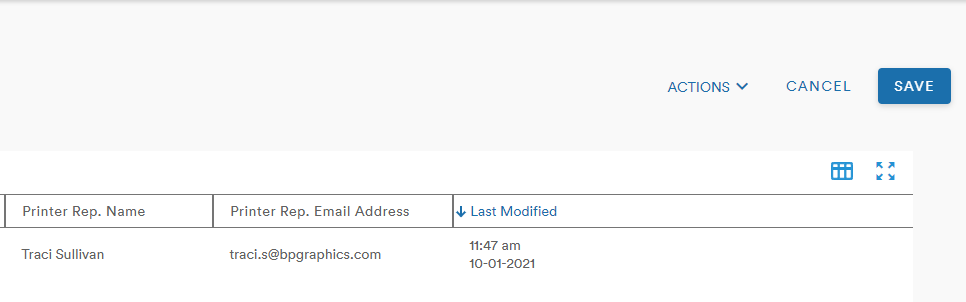
The Action button presents the user with two options:
- Copy Print URL
- Upload
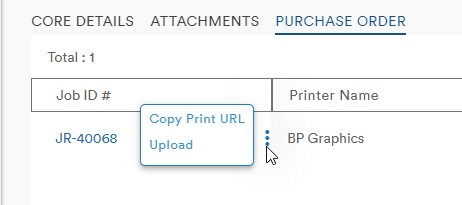
Copy Print URL
Selecting the Copy Print URL option with the following message
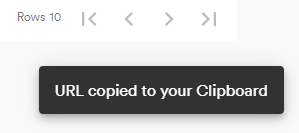
The user can share the link with other users and their clients. Pasting the URL into a browser opens the specific purchase order
Upload
Selecting the Upload options opens the Upload menu which allows users to attach signed jobs or other files to the Purchase Order.
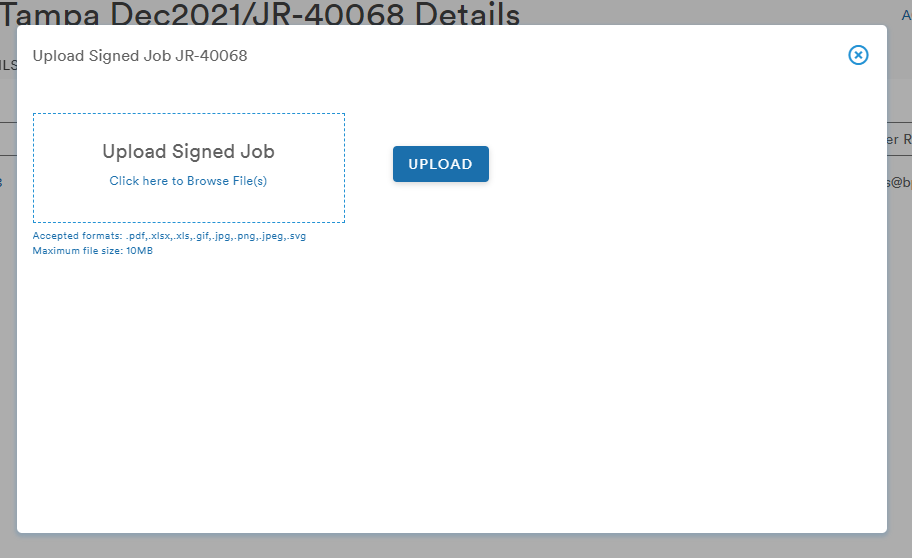
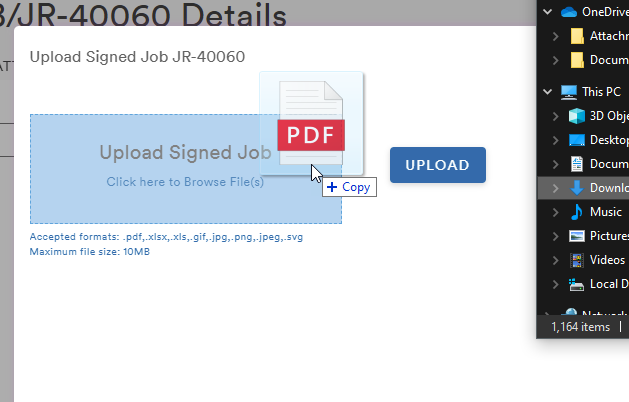
Clicking within the Upload Signed Job box opens the user's file explorer so a file can be found and attached
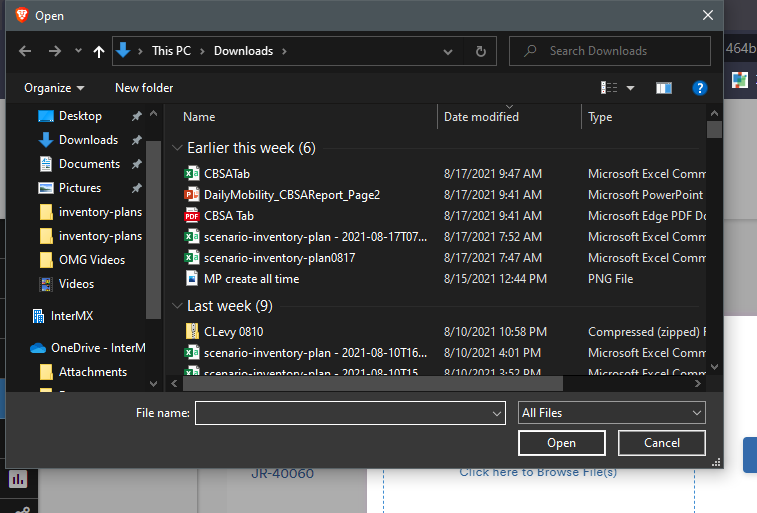
Users can also drag and drop their selected document in the Upload Signed Job box
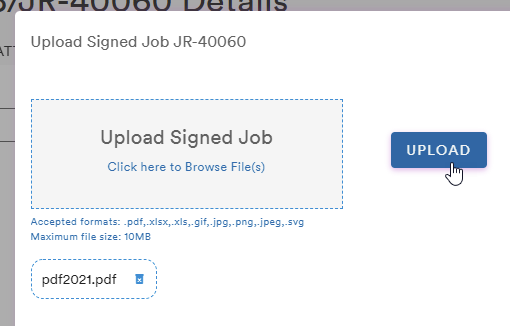
Clicking the Upload button attaches the document to the PO and presents the user with a confirmation pop up
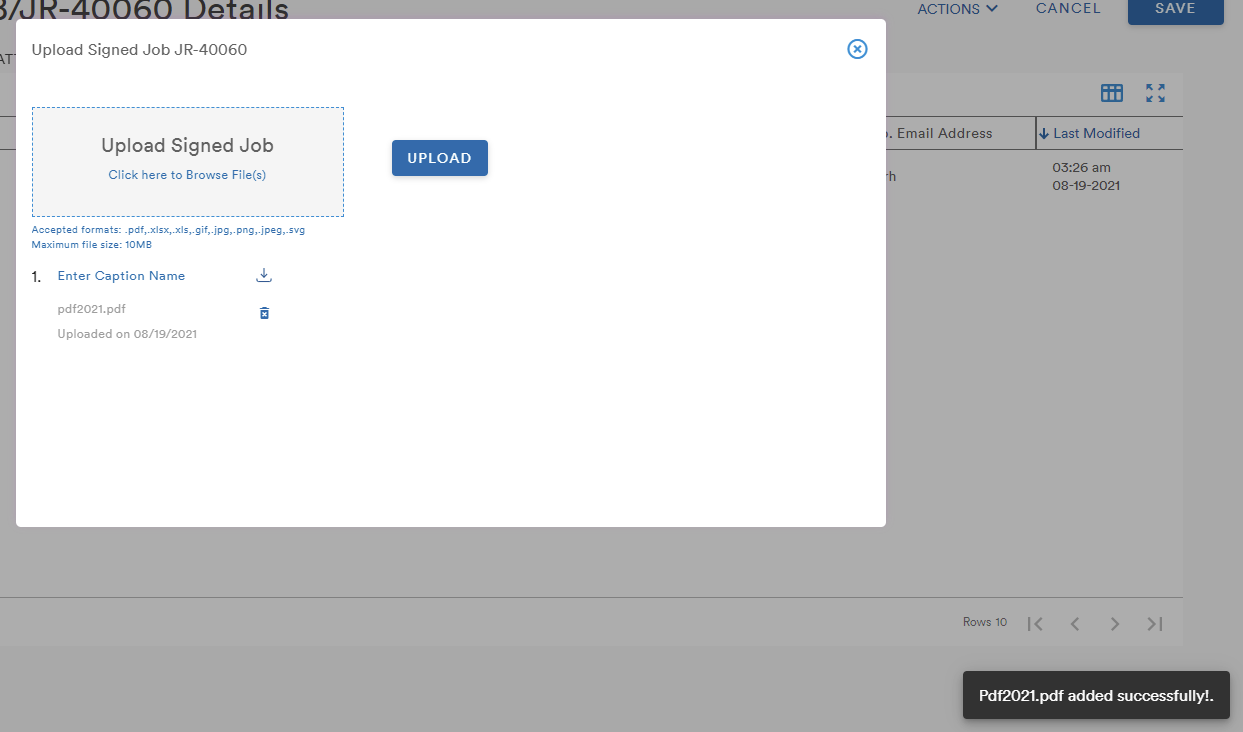
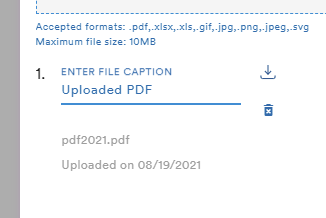
The user can then give the document a name, download the file, or delete the file
It is important to know that while the workflows are similar, documents uploaded to a Job in the Purchase Order tab are not accessible in the Attachments tab
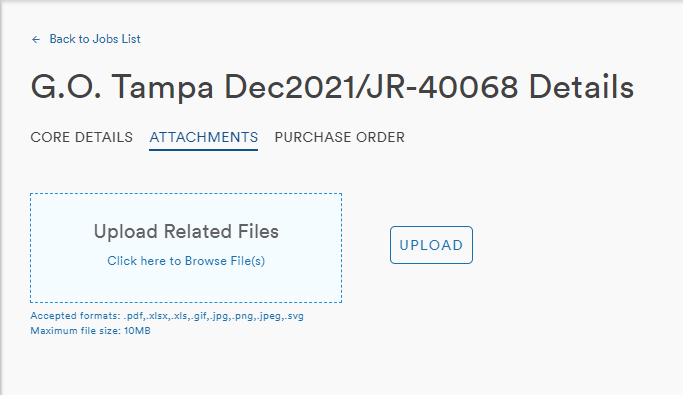
For more on attachments, check out this article
Comments
0 comments
Please sign in to leave a comment.